Install Kwevio on Android and iPhone
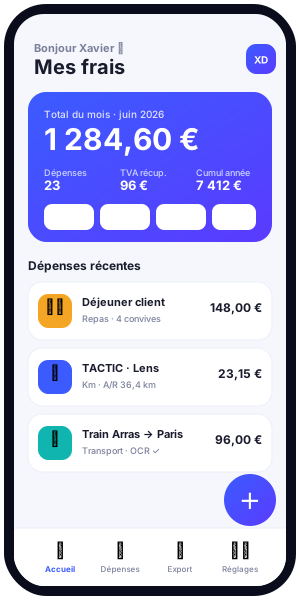
Kwevio is a free professional expense management application that installs directly from your browser, without going through an app store. Created by Xavier Deloffre (FACEM WEB, Arras), it works as a PWA (Progressive Web App): a lightweight website that you can "add to your home screen" so it behaves like a genuine native app, complete with its own icon, full-screen mode and offline operation. This guide walks you step by step through installing Kwevio on Android and iPhone, checking that it works, and then completing your first settings.

What is an installable app (PWA)?
A PWA, or Progressive Web App, is a modern web application that combines the best of a website and a native app. In practice, you simply open an address in your browser, then choose to add it to your home screen. From that moment on, a dedicated icon appears among your other apps, and Kwevio launches in a full-screen window without the browser's address bar. The experience becomes entirely comparable to that of an app downloaded from a store, but without the associated constraints.
For an expense report application like Kwevio, this model offers many benefits. You have nothing to download from the Play Store or the App Store, no approval to wait for, and updates happen automatically and silently as soon as you reopen the app while connected to the Internet. The footprint on your phone stays minimal: a PWA weighs a fraction of what a classic native app occupies.
The concrete benefits of installing as a PWA
- Free and commitment-free: Kwevio costs you nothing and requires no subscription to get started.
- No mandatory account: you can start entering your expenses immediately; your data is first stored locally on your device.
- Offline operation: thanks to a service worker, the app remains usable without a connection, on the train, on the move or in a poorly covered area.
- Automatic updates: no file to reinstall, you always benefit from the latest version.
- Light and fast: the app launches instantly and uses very little storage space.
- Cross-platform: the same app works on Android, iPhone and on a computer.
To fully grasp the benefit of installing, it helps to distinguish a simple bookmark from a genuine add-to-home-screen. A bookmark merely saves an address: it reopens the site in the browser, with its address bar, its tabs and all its distractions. Installing a PWA goes much further: it creates a standalone icon, isolates the app in its own window, and enables resource caching for offline use. This difference is what turns a browsable site into a fully fledged work tool, always a thumb-tap away.
Requirements before installing
Installing Kwevio requires no special hardware and no technical skills. A few simple conditions nonetheless guarantee an optimal experience.
A recent browser
The "add to home screen" feature relies on an up-to-date browser. On Android, we recommend Google Chrome, which fully supports installing PWAs. On iPhone, installation must be done via Safari: it is the only iOS browser that offers adding a web app to the home screen. Be sure to use the right browser for your device.
A compatible device
Kwevio is compatible with Samsung Galaxy S10 and more recent smartphones, as well as with recent iPhones. Generally speaking, any phone able to run a modern version of Chrome or Safari will be able to host the app. An Internet connection is required at the time of the first installation and for updates, but not for daily use once the app is in place.
The application address
Kwevio opens from the site, at the address /app/. This is the link you open in your browser to get started, and it is from this page that you will install it on your home screen.
Installing Kwevio on Android step by step
On Android, installation takes only a few seconds from Google Chrome. Follow these steps in order.
- Open Google Chrome on your smartphone.
- Type the application address in the browser bar, then open the /app/ page of the Kwevio site.
- Let the page load completely. A banner suggesting you install the app may appear automatically at the bottom of the screen: simply tap "Install".
- If no banner appears, tap the menu shown as three vertical dots ⋮ at the top right of Chrome.
- In the menu, select "Add to home screen" or "Install app" depending on the wording offered by your version of Chrome.
- Confirm by tapping "Add" or "Install". You can keep the suggested name, "Kwevio".
- A new Kwevio icon now appears on your home screen, among your other apps.
Tap this icon to launch Kwevio: the app opens full screen, with no address bar, exactly like a native app. You are ready to record your first expenses.
Installing Kwevio on iPhone step by step
On iPhone, installation must go through Safari. The procedure is just as simple, but the button to use differs from the one on Android.
- Open the Safari browser on your iPhone (not Chrome or another browser).
- Go to the /app/ page of the Kwevio site and wait for it to load completely.
- Tap the Share button, shown as a square with an upward-pointing arrow, located at the bottom of the screen (or at the top depending on the model).
- In the share menu, scroll down the list of options until you find "Add to Home Screen".
- Tap this option. You can check or change the name of the app, then confirm by tapping "Add" at the top right.
- The Kwevio icon is then installed on your iOS home screen.
Launch the app by tapping its icon: Kwevio opens full screen, without the Safari interface, for an experience entirely dedicated to managing your expenses.
Checking that the app works offline
One of Kwevio's great strengths is its ability to work without an Internet connection. This is especially valuable for entering a mileage expense or photographing a receipt while on the move, even in an area with no network. After installation, it is worth checking that this offline mode is indeed operational.
- Launch Kwevio from its icon at least once while connected to the Internet, so that the service worker caches the necessary resources.
- Enable your phone's airplane mode, or turn off Wi-Fi and mobile data.
- Reopen the Kwevio app.
- Check that the interface displays normally and that you can navigate, view your data and enter new expenses.
If the app opens and remains usable without a network, offline operation is confirmed. Data entered offline will be kept locally, then synchronized as soon as you regain a connection, provided you have enabled account-based synchronization (an optional step described below).
First settings: starting address, country and language
Once Kwevio is installed and launched, a few basic settings will let you take full advantage of the app from your very first trip or expense.
Set your starting address
Enter your usual starting address in the settings. This is most often your home or your business premises. This address serves as the default starting point for calculating your mileage expenses: you thus save precious time on each new trip, without having to re-enter your point of origin every time.
Choose the country and currency
Select your country so that Kwevio applies the right parameters, in particular the mileage scale and currency suited to your situation. This setting is essential if you work in an international context or if you invoice your expenses under a specific set of regulations.
Set the interface language
Kwevio is available in several languages. Choose the one that suits you in the settings: the interface adapts instantly. You can change this choice at any time without losing your data.
Enabling automatic distance calculation (OpenRouteService key)
For Kwevio to automatically calculate the distance between two addresses when entering a trip, the app relies on the OpenRouteService mapping service. This service is free, but it requires a personal API key that you generate in a few minutes.
Obtain your free key
- Go to the OpenRouteService website and create a free account.
- Once logged in, go to the key management section ("Dashboard" or "API Keys").
- Generate a new API key, then copy it.
Enter the key in Kwevio
- Open Kwevio's settings, in the section dedicated to distance calculation.
- Paste your OpenRouteService key into the field provided.
- Save. From now on, when you enter a starting address and a destination address, Kwevio will automatically calculate the number of kilometres and apply the current scale.
This feature eliminates any manual distance entry and considerably reduces the risk of error in your mileage expense reports.
Connecting your calendar
Kwevio can draw on your calendar to help you reconstruct your business trips. By linking your appointments to your expenses, you save time and never forget a reimbursable trip.
Connect Google Calendar
If you use Google Calendar, you can connect it directly to Kwevio. Once authorization is granted, the app can read your events to suggest creating corresponding expenses, reusing the locations and dates of your appointments.
Import an .ics file
If you prefer not to connect an account, or if you use another calendar, Kwevio accepts the import of an .ics file. Most calendar applications allow you to export your events in this standard format. You then simply import it into Kwevio to retrieve your appointments and turn them into expenses.
Creating an account for synchronization (optional)
By default, Kwevio works without an account: your data stays stored locally on your device, which guarantees privacy and simplicity. However, if you want to access your expenses on several devices — for example your phone and your computer — or secure a backup in the cloud, you can create an account. This step remains entirely optional.
- In Kwevio's settings, choose the account creation option.
- Enter your email address and a password.
- Confirm the account creation.
- Enable synchronization: your data will then be backed up and accessible from any device on which you install Kwevio and log in.
Multi-device synchronization is ideal for those who enter their expenses on the move on a smartphone, but prefer to review and export their expense reports on a more comfortable computer screen.
Your data and your privacy
Kwevio was designed with respect for your privacy. As long as you do not create an account, all your expenses, trips and receipts remain stored locally on your device: nothing is sent to a remote server. You thus keep full control over your professional information, which is particularly valuable for sensitive financial data. This local approach also explains why the app starts instantly and works without a network.
If you decide to enable account synchronization, only the data needed for that synchronization is securely backed up, so that you can retrieve it on your other devices. At any time, you remain free to return to purely local use. Whatever your configuration, Kwevio imposes neither advertising nor tracking: the app focuses on a single mission, the efficient management of your professional expenses.
Uninstalling and updates
Update Kwevio
Updates to Kwevio are automatic. When you open the app while connected to the Internet, the service worker silently retrieves the latest version. You therefore have no action to take, no file to download, no store approval to wait for. If you want to force an update, simply close and reopen the app with an active connection.
Uninstall the app
Uninstalling Kwevio works exactly like any other app. On Android, press and hold the Kwevio icon, then select "Uninstall" or drag the icon to the trash. On iPhone, press and hold the icon, tap "Remove App", then confirm. If you have enabled account synchronization, your data remains saved in the cloud and you will find it again by reinstalling the app and logging back in.
Common troubleshooting
Installing a PWA is usually trouble-free, but a few situations can cause confusion. Here are the solutions to the most frequent problems.
The "Add to home screen" option does not appear
On Android, make sure you are using an up-to-date Google Chrome: some alternative browsers do not offer this feature. On iPhone, check that you are indeed in Safari and not in Chrome or another browser, because only Safari allows adding to the home screen on iOS. Also remember to load the /app/ page completely before looking for the option.
The app does not work offline
Offline mode only becomes active after you have opened the app at least once while connected, giving the service worker time to cache resources. If the problem persists, open Kwevio again with a connection, wait a few seconds, then test again in airplane mode.
Distance calculation does not trigger
Check that you have indeed entered and saved your OpenRouteService key in the settings. Make sure the key was copied without any extra space. If the service has just been activated on the OpenRouteService side, a short delay may be necessary before the key is fully operational.
The icon has disappeared or the app seems frozen
If the icon was accidentally deleted, simply reopen the /app/ page in your browser and reinstall the app: your local data is preserved. If the display is frozen, close the app completely then relaunch it; an automatic update will load along the way if a connection is available.
Frequently asked questions about installation
Is Kwevio really free? Yes, the app is entirely free. You neither pay to install it nor subscribe to anything to manage your professional expenses and mileage.
Do I have to go through the Play Store or App Store? No. Kwevio is a PWA: it installs directly from the browser, by opening the /app/ page then adding it to the home screen. There is no version to download from an app store, and there is no need for one.
Do I have to create an account to start? No. You can use Kwevio immediately, without an account, with your data stored locally. The account is only for multi-device synchronization, and remains entirely optional.
Does the app work on a computer? Yes. Although this guide focuses on Android and iPhone, Kwevio can also be installed on a computer from a compatible browser, which is handy for reviewing and exporting your expense reports on a large screen.
What happens to my data if I change phones? If you have enabled account synchronization, simply reinstall Kwevio on the new device and log in to retrieve your expenses. Without an account, remember to export your data before switching devices.
Conclusion
Installing Kwevio on Android or iPhone comes down to opening the /app/ page in your browser, then adding it to your home screen with a few taps. In about two minutes, you have a genuine free expense report application that is lightweight, works offline and updates itself, without going through any app store. Once installed, a few settings — starting address, country, language, OpenRouteService key, calendar — turn it into a remarkably effective tool for tracking your professional expenses and mileage on a daily basis.
Ready to get started? Open Kwevio and install the app now.